
TrueInsight
Siemens/Altair Channel Partner
Menu



Accessing and Utilizing the Altair Monarch App Library
Altair Monarch offers a large, no cost, library of pre-built templates for its users to get up and running fast!
Altair Monarch allows users to extract, prepare, and analyze data from an extremely wide range of sources, including PDFs, spreadsheets, databases, and many more. After connecting your data source to the software, one of the first steps is almost always to define the model or the “template” that will be used. This is the part of the process that allows you to set up a data extraction and processing model once on some initial data; after that, all you need to do is provide fresh input data.
Did you know that even this first step can be drastically reduced or outright eliminated in many use cases? In the Altair Monarch App Library, there are thousands of pre-built assets to expedite the data extraction part of the process. These include models and workspaces in Monarch Classic and Data Prep Studio for documents, reports, and other data sources from an expansive array of industries, including financial, medical, and others.
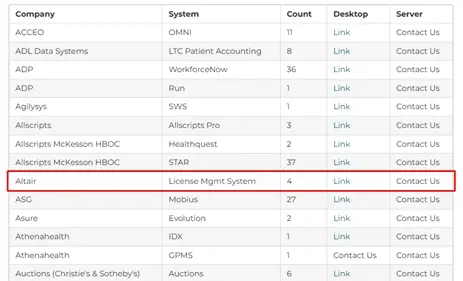
Fig 1. Altair Monarch App Library and template selection.
To demonstrate these capabilities, we will assume that our input data is a collection of License Logs from our Altair One account. You could use the native Log File Parser, but we will stick to the Altair Monarch approach, allowing us more flexibility and control over the data. Figure 1 above shows the Altair Monarch App Library and how to select the correct option for our current inputs.
When searching this list, you will notice that it is organized by the company that provides the report type and system that generates it. The “Count” column indicates the number of resources related to that specific system.
Lastly, you can access the link to download the related model/template file(s) for use in Monarch Desktop and Monarch Server in the final two columns. For this example, we followed the “Desktop” link for the “Altair License Mgmt System” and we added the provided model (All Results.dmod) to an Altair Data Prep Studio workspace. The results of uploading a single test log file are shown below in Figure 2.
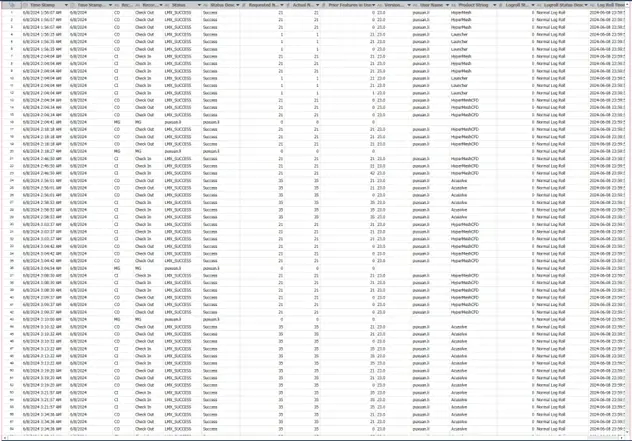
Fig 2. Results of Library’s premade model on one test input file.
Upon further examination, we can look at the actual template and field definitions within the model. Figure 3 shows how the Append Trap was set up to capture many of the pieces of information that precede the current set of rows.
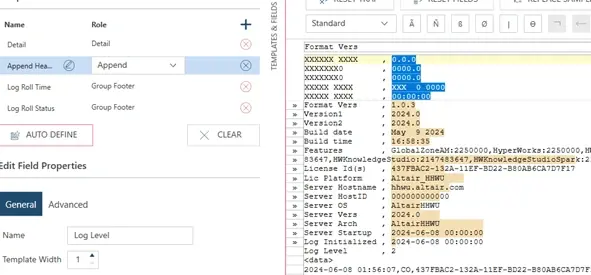
Fig 3. Inspection of pre-defined Append trapping logic in premade model.
Similarly, Figure 4 displays the setup of the Detail Trap and the customization of the Time Stamp field. All of these steps were accomplished automatically, and all we had to do was provide the raw data. Naturally, we can make document option updates, field and template additions, or otherwise update the premade assets as we need. To learn more about the specifics of trapping logic, please check out one of our earlier videos or blogs on the subject.
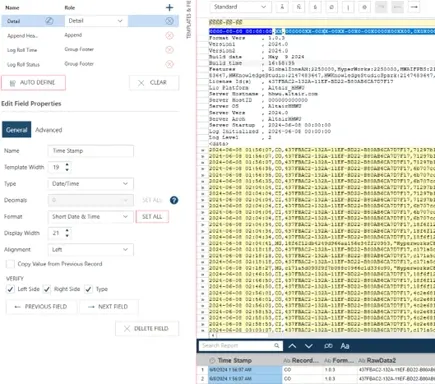
Fig 4. Inspection of pre-defined Detail trapping logic in premade model.
Now that we are certain the model accurately meets the needs of our data, we can process the data however necessary in Altair Data Prep Studio. As an example, Figure 5 depicts the output of loading in a whole month of logs for a specific user and generating a pivot table. This shows us which tools are getting used and how often they are accessed throughout the month, and it only requires a few clicks to get these results.
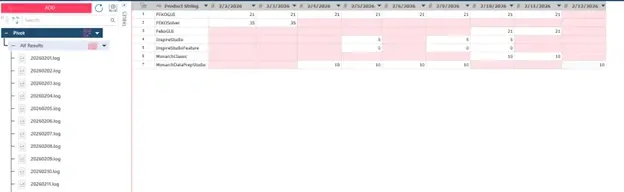
Fig 5. Further data preparation in Altair Monarch Data Prep Studio.
With these tips in mind, you can now use Altair Monarch to extract, process, and export data even faster than before. Instead of taking time to design complex and possibly tedious models, you should always check the Altair Monarch App Library to see if your standard report structure has been added. If you have any questions about accessing these files or if you have questions about seeing a specific file type on the list in the future, please reach out to us. As always, check back here often for more information like this, and be sure to subscribe to our YouTube channel for even more walkthroughs, tutorials, and updates on Altair software.