
TrueInsight
Siemens/Altair Channel Partner
Menu



How to Utilize the Imprint Command in HyperMesh
This post will walk you through how to use the Imprint Command in Altair HyperMesh for a simpler meshing workflow.
Altair HyperMesh is a powerful preprocessing tool, that enables users to mesh a plethora of parts in various situations. In many situations when I talk about HyperMesh, I talk about the merits of how it handles advanced meshing, or large assemblies, but one of the unsung heroes of HyperMesh are some of the commands to help even with simpler parts. One such command is a common command I utilize that aids with interference surfaces, the Imprint Command. In today’s blog I am going to walk you through how to utilize the Imprint Command in Altair HyperMesh.
What is the Imprint Command Altair HyperMesh?
Before I step you through the process of how-to utilize the Imprint Command, I think it’s important we understand what it does. The Imprint Command allows you to place a specified geometrical surface or elements onto a target surface, whether they are interfering, coincident, or have gaps between them. A perfect application of this is if you have two geometrical bodies interfering, and you want one surface to be on the surface of that geometry. Thus, when you apply loads it has the exact shape of that surface on it. Without the Imprint Command, you would have to go back to your CAD tool and make sure the surfaces were directly coincident, to make sure you have aligned surfaces. The Imprint Command, however, eliminates this need and is something I use all the time to save me from having to make changes in my CAD tool.
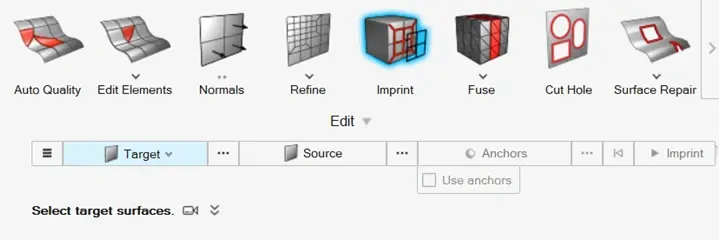
Figure 1: Imprint Command Dialogue Box
Using the Imprint Command
So, now that we understand what the Imprint Command is, let’s look at an example. The example I have are two solid components with an interference (Figure 2). Ultimately, if we look at Figure 2, we see there is a hexagon geometry and a bracket that are interfering with each other. The hexagon geometry’s main purpose is to apply a load to the red bracket’s main surface. Unfortunately, there is a large interference of the hexagon geometry on the red bracket. Traditionally, we would either have to use a move command in HyperMesh, or go back to the CAD tool and resolve this interference. However, with the Imprint Command, I can eliminate both of those steps, to get the hexagon surface on the bracket.
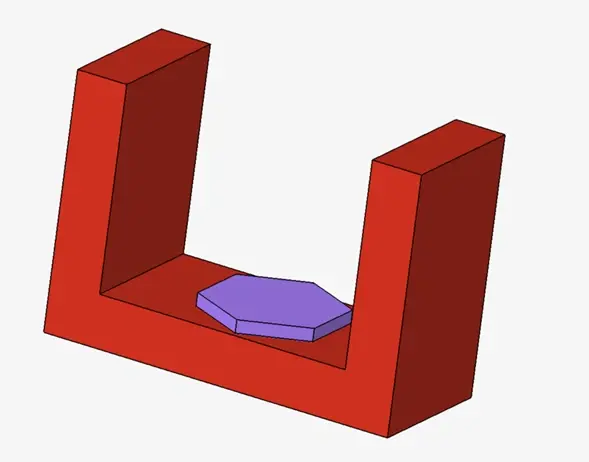
Figure 2: Interference of Hexagon and Bracket Part
The Imprint Command is dynamic in HyperMesh, meaning I can apply it directly on geometry, or I can also apply it directly after mesh data has been generated. In my case, I am going to create mesh for both geometries and then apply the Imprint Command (Figure 3). Meshing can be done by either batch meshing or using the freeform mesh option under the 2D mesh menu. I utilized the freeform mesh option and applied a mesh density of 0.25 inches for reach geometry.
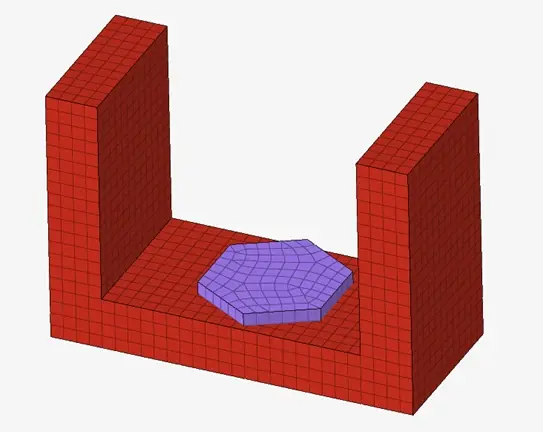
Figure 3: Mesh of both Geometries
Now that mesh data has been generated, I can activate the Imprint Command, it first will ask me for the source surface that will get imprinted, in this case it will be the red bracket. Then it will ask me for the surface to imprint, and this will be the bottom surface of the hexagon surface (Figure 4). I then hit imprint and the command will automatically imprint the hexagon surface onto the red bracket. Note I could also do this command if I had two geometries with gaps, if I wanted to.
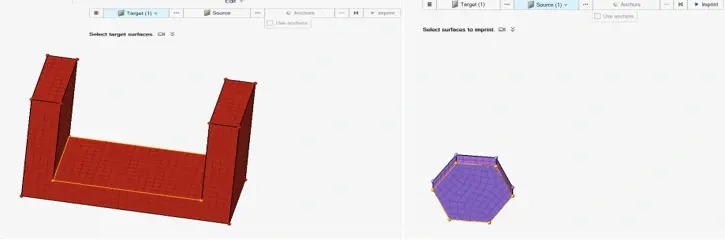
Figure 4: Left, Specifying Target Surface of Red Bracket and Right, Selecting Imprint Surface of Hexagon
After the command executes, the hexagon surface is now imprinted on the bracket, so if we view just a geometry view or element view, we will see the boundaries of the hexagon surface on the red bracket (Figure 5). Since I am only worried about running a simulation on the red bracket and just need the hexagon surface as a location to apply the load, I can now run the model. Just like that, I was able to get the proper surface imprinted, and ready for simulation. No need to jump back to my CAD tool!
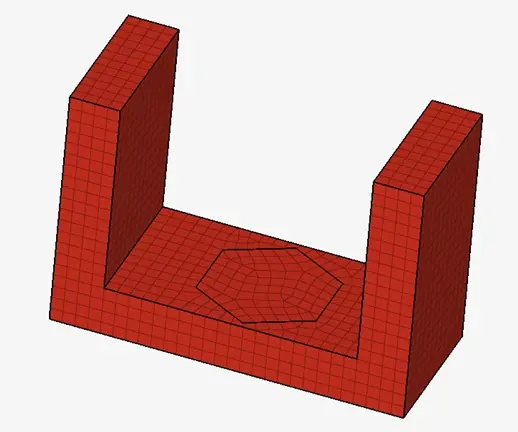
Figure 5: Final Imprinted Surface
I hope this has illustrated to you the efficiency of using the Imprint Command in Altair HyperMesh, try it out on your own! If you have any further questions on Altair HyperMesh or any other Altair or Siemens solution, please reach out to us here at TrueInsight!