
TrueInsight
Siemens/Altair Channel Partner
Menu



Leveraging Simcenter Hyperstudy & PSIM Part 3: From Optimization to Model Deployment
In this final part of our series, see how to utilize Simcenter PSIM and Simcenter Hyperstudy to perform optimization.
In previous blog posts (first and second) and videos (first and second), we explored how to integrate Simcenter PSIM with Simcenter Hyperstudy in order to analyze and optimize circuit design parameters. Let us conclude the overview of this workflow by taking a closer look at what steps are possible after you have performed your optimization. Hyperstudy allows us to elevate the model deployment process in various methods, such as resultant data fitting, simplified model generation, and rapid co-simulation.
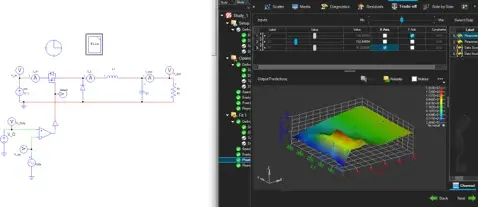
Fig 1. Overview of Simcenter PSIM (left) and Simcenter Hyperstudy (right).
Exploring Simulated Data
Many engineers want more than a single optimized design when it comes to model exploration. Often, it is valuable to learn more about how inputs interact with each other and impact the output. Hyperstudy provides the tools needed to address these questions, such as the ability to create a fit of your model’s simulation data. The first step in this process is to perform a Design of Experiments (DOE) in Hyperstudy using our existing model analysis as the starting point.
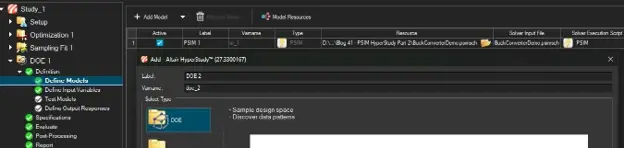
Fig 2. Creating a new DOE using the existing Setup in Hyperstudy.
Before running the DOE, we can see that our model definition, its inputs and outputs, and the nominal test run are all included automatically, as seen in Figure 2 above. Additionally, the design space will be automatically populated, but we can adjust the ranges of input parameters as needed, as seen in Figure 3 below.
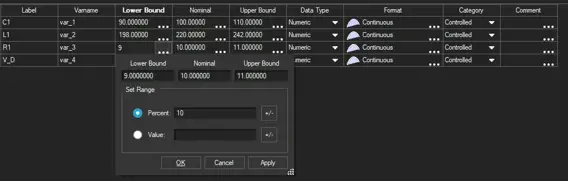
Fig 3. Viewing and editing default parameter ranges in Hyperstudy.
The last setup step is to choose the number of simulations to run to populate this DOE and how to sample the combinations of possible inputs. Figure 4 below shows the options available for scattering your sample points appropriately within your sample space.
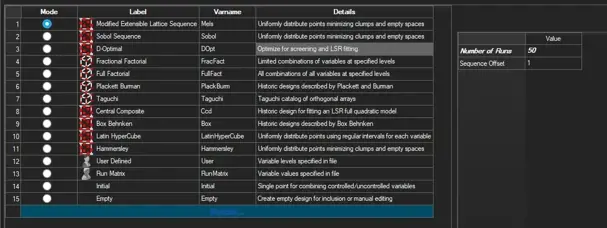
Fig 4. Selection of sampling method for DOE in Hyperstudy.
Now we are ready to run the DOE! This will automatically run the PSIM simulation for every prescribed combination of input parameters and store the measured responses. In the case of our buck converter example, we can immediately begin viewing raw output data in addition to relationship analysis, as seen in Figure 5.
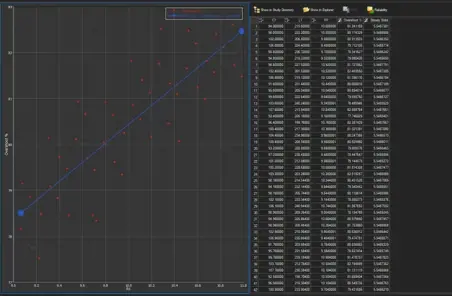
Fig 5. Correlation results (left) and raw output data (right) as result of DOE in Hyperstudy.
Simplified Model
While the DOE features discussed in the previous section offer great value in terms of design exploration and input-weighting analysis, that is only the beginning of what is possible. Now that we have performed a DOE, Hyperstudy also allows us to generate a data fitting model to represent the simulated PSIM circuit. Like most analyses in Hyperstudy, we can build upon the existing DOE to create our Fit, as seen in Figure 6.
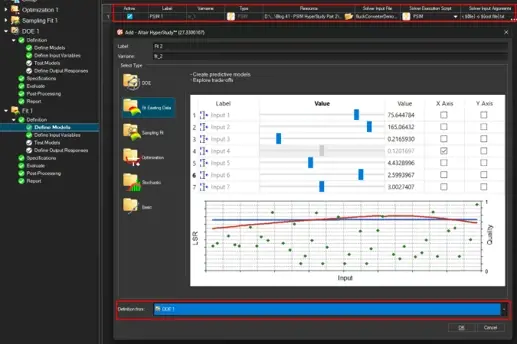
Fig 6. Creating a new Fit using the existing DOE in Hyperstudy.
Again, we can verify our inputs, outputs, and fitting methods. By default, Hyperstudy fits the data using an intelligent combination of model training and data regression. Figure 7 depicts the final setup, where we can change this default fitting method (if desired) before generating the Fit.
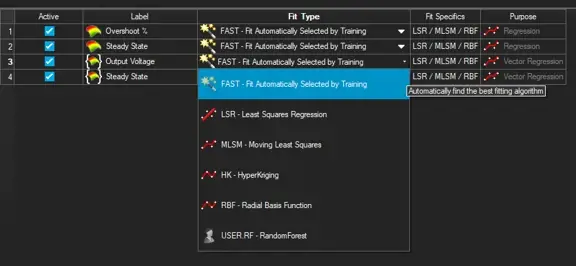
Fig 7. Fitting algorithm selection in Hyperstudy.
Post-processing this Fit provides a valuable and rapid method to accurately estimate the output metrics of our PSIM buck converter without simulating every possible combination of inputs. Figure 8 shows how we can manipulate the input variables to examine entire ranges of outputs. With just a subset of sample models, we have successfully generated a continuous map to estimate the simulated results of an entire parameter sweep!
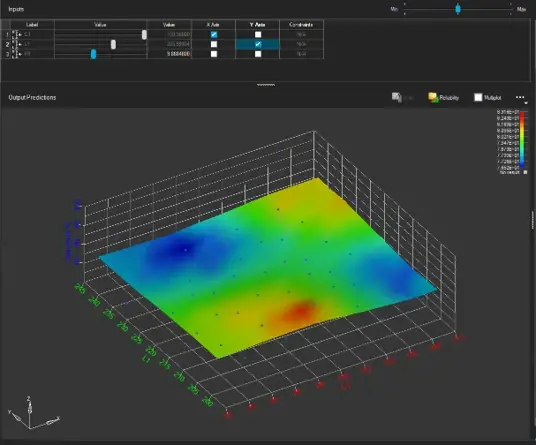
Fig 8. Multi-variable surface of response based on Fit data in Hyperstudy.
Co-Simulation
Analyzing this data in Hyperstudy is already one powerful asset for engineers, but that is still not the limit of this exploration. We can export these Fit results to a Functional Mockup Unit (FMU) for further examination and even co-simulation. Figure 9 shows all the export options available, but we will select Functional Mockup Unit to create an .FMU file that can be imported into any tool with Functional Mockup Interface (FMI) compatibility.
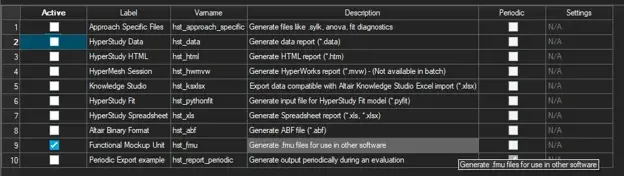
Fig 9. Exporting FMU from Hyperstudy.
For example, we can bring this FMU into another Simcenter product: Twin Activate. Twin Activate is a versatile block-diagram tool that is effective in system-level simulation, multiphysics analysis, and co-simulation. Importing this FMU and connecting it to a larger diagram provides several benefits. Deploying the FMU of our PSIM buck converter allows us to almost immediately see how the circuit interacts with other inputs and systems. Since the FMU does not need to re-run the simulation for every parameter change, engineers can focus on broader analysis for systems that incorporate the buck converter. Figure 10 shows how we can utilize the inputs and outputs of the schematic without the need to ever run PSIM in this Twin Activate simulation.
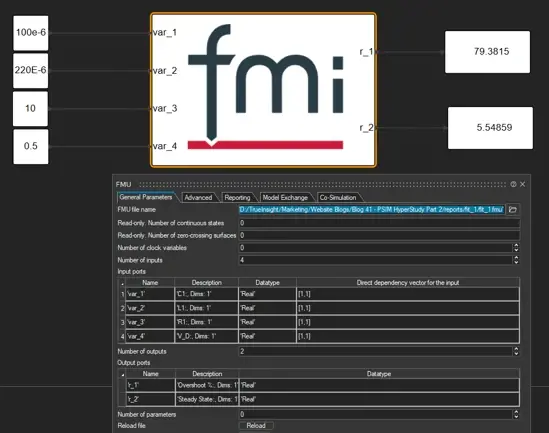
Fig 10. Implementation of FMU in Simcenter Twin Activate.
This has been a brief overview of the DOE and model simplification process made possible by Simcenter Hyperstudy. Integrating these features with Simcenter PSIM allowed us not only to optimize the circuit schematic, but it also provided insight on the performance of the circuit, and it expanded our simulation and deployment options. If you would like to learn more about how to get the most out of Hyperstudy-PSIM integration, please subscribe to our YouTube channel and check out our other blogs. As always, if you have any questions about either of these tools specifically, or any other solution offered in the Siemens and Altair engineering portfolios, please reach out to us directly!