
TrueInsight
Siemens/Altair Channel Partner
Menu



Customizing Hotkeys and Ribbons in Simcenter HyperMesh 2026
Learn how to use existing and create your own hotkeys in Simcenter Hypermesh for higher efficiency.
If you've spent any time in Simcenter HyperMesh, you know the ribbon holds a lot of tools, and the ones you use ten times a day aren't always the ones sitting one click away. The good news is that HyperMesh 2026 gives you several ways to reshape the interface around your own workflow instead of the other way around. In this blog, I am going to lay out some quick tips for customizing HyperMesh so the tools you reach for constantly are always within a keystroke.
Tip 1: Find Any Tool Instantly with Ctrl + F
Before you build a single custom hotkey, let’s get comfortable with the search bar that's already built in Simcenter HyperMesh. Pressing Ctrl+F opens a search box at the top right of the window (Figure 1). Start typing the name of a tool, browser, or even a solver card (for supported profiles like OptiStruct, Radioss, or LS-DYNA), and HyperMesh will find the tool as you type.
Use your arrow keys and hit Enter, or just click the result, and the tool will open immediately. There is no need to open a ribbon to find the tool. It's the fastest way to reach a tool you only use occasionally, and it's a good habit to build before customizing anything else.
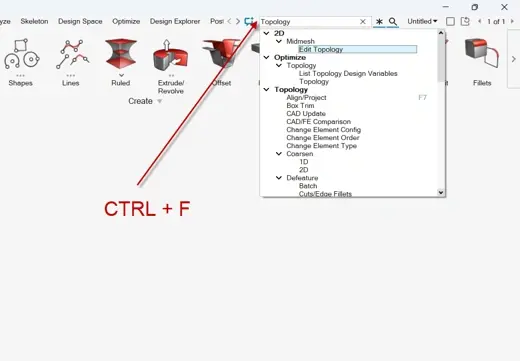
Figure 1: ToolFinder in Simcenter HyperMesh
Tip 2: Build your own Hotkeys with the Keyboard Shortcuts Editor
For the tools you reach for constantly, searching every time still costs you a second or two. That's what the Keyboard Shortcuts Editor is for. You can access the keyboard shortcuts editor from the View menu, and you'll find a full list of assignable functions alongside the default shortcut hotkeys which are assigned upon install of Simcenter HyperMesh.
You can assign a new key to any function pulled straight from the ribbon and toolbars. When assigning a shortcut, you can use any combination of letters, numbers, and function keys. For example, let’s create our own custom shortcut hotkey for an adaptive wrap using the CTRL and 1 key. All we have to do is map the shortcut and type the characters on our keyboard and it will save this hotkey combination (Figure 2).
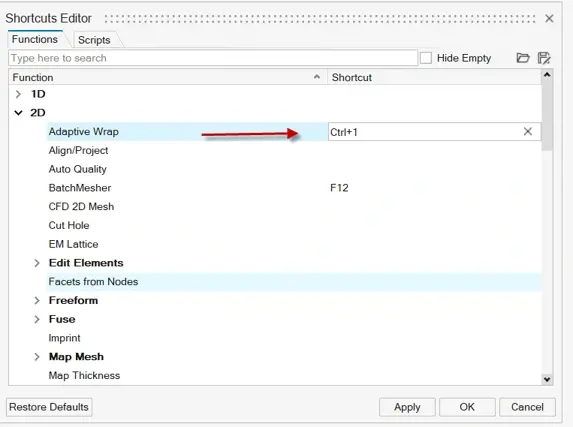
Figure 2: Custom Hotkeys in Simcenter HyperMesh
The great thing about this tool is you can also export this via the save icon and then save it as an xml and a colleague can utilize it as well! Using this tool will save you so much time, and I would suggest creating Hotkeys for meshing, topology, and check tools and you will stop needing to reach for your mouse to save even more time in HyperMesh!
Tip 3: Group your Most Used Tools into a Custom Ribbon
If you find yourself bouncing between tabs to grab the same handful of tools, the custom ribbon tool lets you build your own ribbon tab and put them all in one custom ribbon. The customization allows you to add buttons for core HyperMesh functions or your own scripts and arrange them into groups to aid in your workflow. For instance, whenever I am going through a mesh, I tend to use the split/stitch command, the 2D freeform mesh command, and then the 3D tet, and edit element commands. Let’s create our own ribbon which uses all these commands.
Our first step to do this is to click on the top of the ribbon at the far right where it says custom and create our custom ribbon. For reference, the custom ribbon is located right next to the PhysicsAI ribbon (by default), just look for your furthest right ribbon and you will see the custom ribbon. We will name our custom ribbon as “My Meshing”, as shown in Figure 3.

Figure 3: Location of Custom Ribbon in Simcenter HyperMesh
After we create the custom Ribbon we can add commands to the ribbon, all we have to do is click on a command and hold down the left mouse button and drag it over to the custom ribbon then release the left mouse button. Just like that, the command will be moved over to this new custom menu. Let’s do this for all of our commands, and once we have added all commands, we can see them in Figure 4.

Figure 4: Commands in our Custom Ribbon in Simcenter HyperMesh
I use this trick all the time to help me have my most used commands in a quick to find place, give this a try on your own! I hope all these tips can help you save you some time the next time you are in Simcenter HyperMesh. To learn more about Simcenter HyperMesh or any other Siemens product, please contact us here at TrueInsight!