
TrueInsight
Siemens/Altair Channel Partner
Menu



Automation in Simcenter FEKO
Check out some of the automation tools built into Simcenter Feko that speed up everyday workflows for users
Simcenter FEKO leads the industry in the simulation, analysis, and design of electromagnetic devices. With the broad capabilities of FEKO, engineers can optimize antenna design and placement, perform radar cross-section analysis, and analyze electromagnetic compatibility and interference.
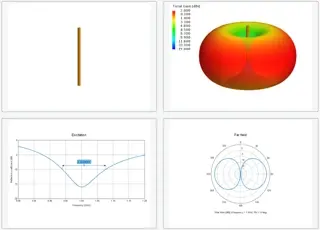
Fig 1. Dipole antenna geometry and analysis in FEKO.
Out of the box, FEKO is an impressively powerful tool with an extensive range of applications; engineers can take these strengths even further by utilizing some of the process automation features available within the tool. Specifically, let’s look at how users can streamline the entire design process using pre-built automations, creating custom macros, or implementing LUA scripting.
Prebuilt Macros
First, FEKO comes preloaded with a wide variety of macros that empower engineers to quickly accomplish several different types of tasks. These macros can provide immediate solutions to automatically manipulate geometry, assist in design calculations, or to even generate entire models.
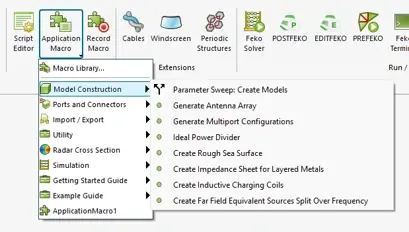
Fig 2. Overview of pre-loaded macros in FEKO.
Figure 2 above shows just some of the automations that come with FEKO by default. For example, we can use the Parameter Sweep: Create Models to automatically modify any number of variables in our model over a defined range, which can be used to compare several combinations of design changes.
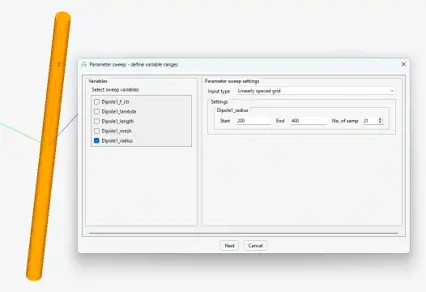
Fig 3. Setting up variable ranges as inputs to Parameter Sweep macro.
For instance, suppose we would like to examine the reflection coefficient of a simple dipole antenna as we adjust the radius. The Parameter Sweep: Create Models macro allows us to quickly define a range for this variable (and others if desired) that I am interested in analyzing, as shown in Figure 3 above. FEKO then automatically creates each model with the updated combination of parameters, solves the model, and stores the results. Once the models are solved, we can easily compare the results of our design changes, as seen in Figure 4 below. From here, we can choose the results that align with our specific goals, open the model that generated those results, and continue the design process.
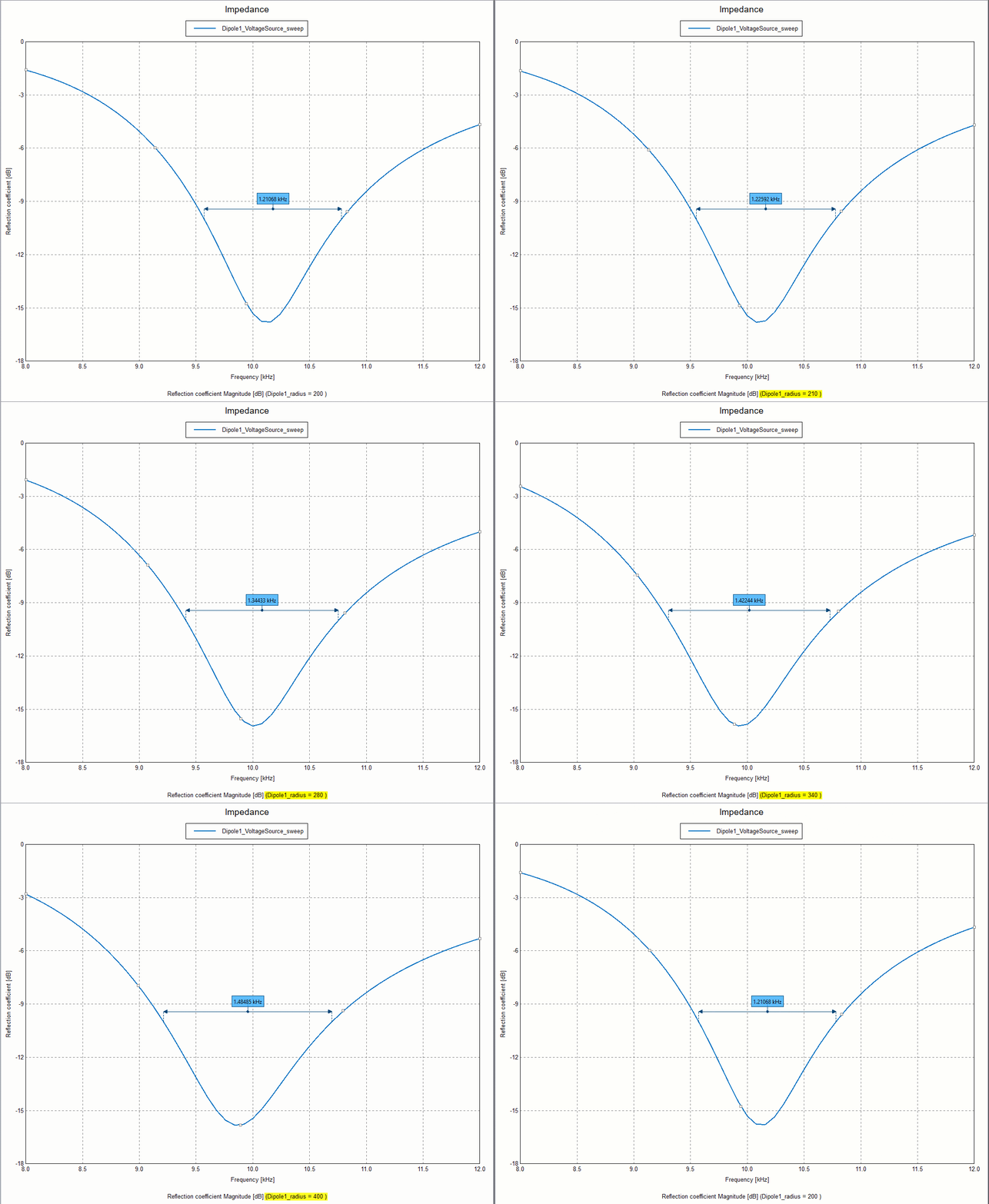
Fig 4. Animation displaying all results of Parameter Sweep macro.
There are several other macros included that will perform tasks more specific to individual applications, such as generating a rough sea surface. This macro is helpful for setting up simulations that take place on potentially “choppy” water, like analyzing antennas on a naval ship. Instead of simply using flat water or manually creating and repeating geometry to approximate waves, we can use the Generate Rough Sea Surface macro to expedite the process.
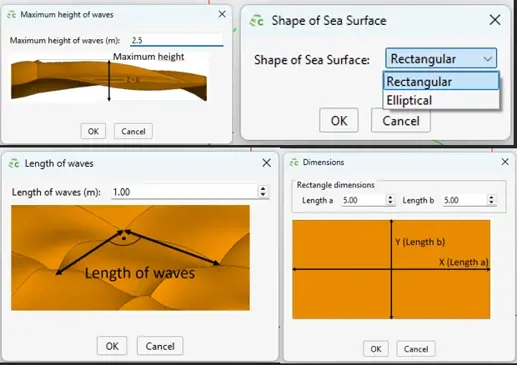
Fig 5. Inputs to Generate Rough Sea Surface macro.
Figure 5 above shows the various parameters that we can provide to define our sea surface, and below in Figure 6, we can see the automatically generated output of this macro. This rapid geometry generation is an excellent tool for users who need to simulate their designs in a wide variety of environments.
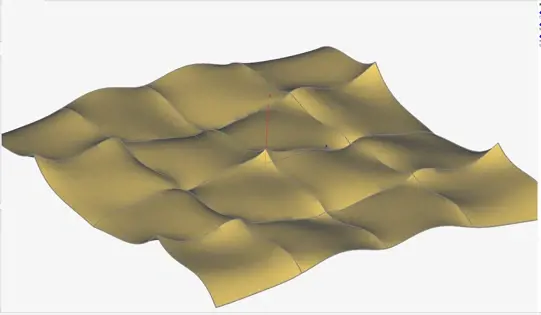
Fig 6. Sample output from Generate Rough Sea Surface macro.
Custom Macros
In addition to the pre-built automations within FEKO, users can also create their own custom macros for any highly repeatable processes. The process is very straightforward, as you simply begin your macro using the Record Macro button as shown in Figure 7. From there, you can begin the process you would like to automate

Fig 7. Button to begin recording tasks to generate custom macro.
For example, let’s suppose we are simulating devices that often have symmetry about their x, y, and z axes. FEKO allows users to define geometric, electric, and magnetic symmetry along any of these axes with a few button-clicks, as shown in Figure 8 below.
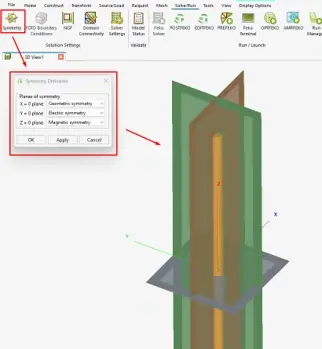
Fig 8. Performing symmetry setting definition during macro recording.
If we want to automatically apply these same settings to any other model in the future, we can create a quick automation by clicking Record Macro, applying the desired symmetry definitions, and ending the recording with another click of Record Macro. As seen in Figure 9, this automatically generates a script that we can save and use to define symmetry in any future models.
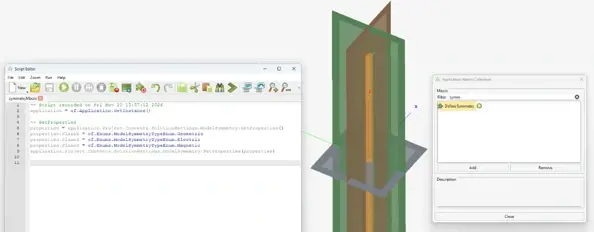
Fig 9. Using recorded MACRO to apply repeated symmetry settings.
Custom LUA Scripting
Lastly, if the pre-made and custom macros are unable to meet all your automation needs, you can create highly customized processes that run automatically using FEKO’s built-in scripting language: LUA. This language, which is somewhat like Python, is how the automatically generated macros discussed earlier are saved for later use. If your application requires something more complex than what can be recorded in the Macro Recorder application, a full custom LUA script can be used.
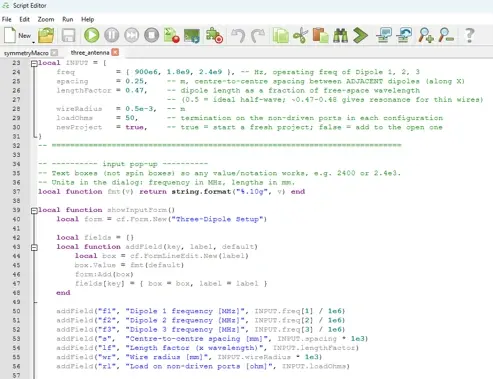
Fig 10. Sample of LUA script.
Assume that we are interested in analyzing the dipole antenna from the first part of this blog, but we want to simulate three different variants of this device within a proximity of one another. We have the option to manually create each antenna’s geometry based on the desired operating frequency for each, and then we can translate them to the correct locations. Instead, though, we can create a simple LUA script that will accept the operating frequencies and antenna separate distance as inputs. This script, a snippet of which is shown Figure 10 above, will then automatically generate the geometry based on our desired parameters. Figure 11 below shows the GUI that is launched when we run our LUA script to create this device. We can now use this script as many times as we like to generate different configurations of our device as needed.
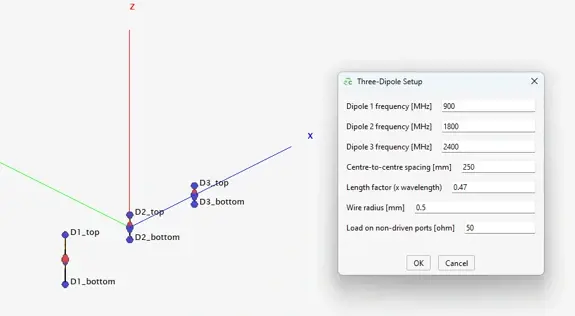
Fig 11. Custom LUA script pop-up to generate 3 distinct dipole antennas.
This is just an overview of the tools provided by Simcenter FEKO to accelerate the design, simulation, and analysis of electromagnetic devices. If you would like to learn more about FEKO or how to improve your workflows in the tool, be sure to check out our other blogs and subscribe to our YouTube channel. As always, reach out directly if you have any questions about Siemens and Altair portfolio of engineering solutions!